In PySide6, QPushButton can be set to toggle mode using the setCheckable(True) method, allowing the button to switch between two states. This type of button can also be called a toggle button.
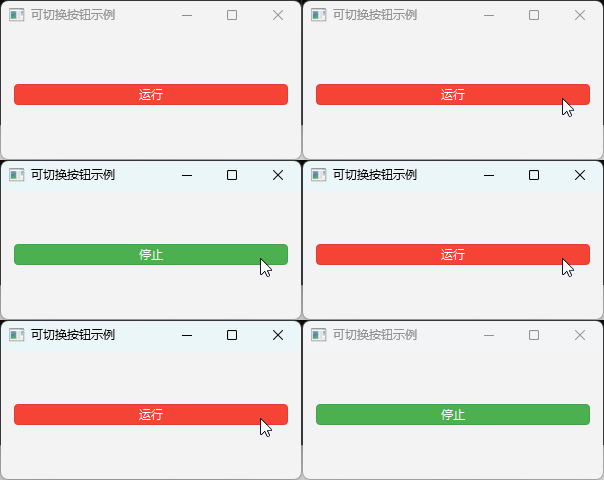
You can set the button to toggle mode using the setCheckable(True) method:
button = QPushButton("Button")
button.setCheckable(True)
toggled Signal
The toggled signal is triggered when the button's checked state changes:
button.toggled.connect(on_toggled)
def on_toggled(checked):
    pass
The slot function for the toggled signal accepts a boolean parameter indicating the button's checked state, where True means selected.
The toggled signal only triggers in toggle mode.
Related Properties and Methods
isCheckable(): Returns a boolean value indicating whether it is in toggle modesetCheckable(bool): Sets to toggle modeisChecked(): Returns a boolean value to determine if it is in the checked statesetChecked(bool): Sets the checked statetoggled(): Toggles the state
Example Code
import sys
import os
from PySide6.QtWidgets import (QApplication, QWidget,
    QPushButton,QVBoxLayout)

class MainWidget(QWidget):
    def __init__(self):
        super().__init__()
        self.initUI()

    def initUI(self):
        self.resize(300, 200)
        self.setWindowTitle("Toggle Button Example")

        self.button = QPushButton("Run")
        self.button.setCheckable(True)
        self.button.setStyleSheet("""
            QPushButton:checked {
                background-color: #4CAF50;
                color: white;
            }
            QPushButton:!checked {
                background-color: #f44336;
                color: white;
            }
        """)
        self.button.toggled.connect(self.on_toggled)

        layout = QVBoxLayout()
        layout.addWidget(self.button)
        self.setLayout(layout)

    def on_toggled(self,checked):
        self.button.setText("Stop" if checked else "Run")

if __name__ == '__main__':
    app = QApplication(sys.argv)
    window = MainWidget()
    window.show()
    sys.exit(app.exec())