In PySide6, to add an icon to a button, you can use the PySide6.QtGui.QIcon class to load an icon file, specify the icon during QPushButton initialization, or use the setIcon() method to set the icon for the button.
1. Specifying the Icon During Construction
This method is suitable for scenarios where the icon is fixed and unchanged;
from PySide6.QtGui import QIcon

button = QPushButton(QIcon("open.png"),"Open(&O)")
2. Using setIcon() to Set the Icon
This method is suitable for scenarios where the icon needs to be switched based on state;
from PySide6.QtGui import QIcon

button = QPushButton("Open(&O)")
button.setIcon(QIcon("open.png"))
Adjusting Icon Size
You can use the .setIconSize() method to adjust the size of the icon:
from PySide6.QtCore import QSize

# Adjust to 24x24
button.setIconSize(QSize(24, 24))
Example Code
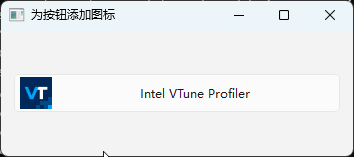
Below is a simple example code that demonstrates how to add an icon to a button and adjust the icon size:
import sys
import os
from PySide6.QtWidgets import (QApplication, QWidget,
    QPushButton,QVBoxLayout)
from PySide6.QtGui import QIcon
from PySide6.QtCore import QSize

class MainWidget(QWidget):
    def __init__(self):
        super().__init__()
        self.initUI()

    def initUI(self):
        self.resize(300, 200)
        self.setWindowTitle("Adding an Icon to a Button")

        # Get the directory where the script is located
        script_dir = os.path.dirname(os.path.abspath(__file__))
        # Path to the icon file
        icon_path = os.path.join(script_dir, "vtune.ico")
        icon = QIcon(icon_path)

        self.button = QPushButton("Intel VTune Profiler")
        self.button.setIcon(icon)
        self.button.setIconSize(QSize(32,32))

        layout = QVBoxLayout()
        layout.addWidget(self.button)
        self.setLayout(layout)

if __name__ == '__main__':
    app = QApplication(sys.argv)
    window = MainWidget()
    window.show()
    sys.exit(app.exec())
Program Running Effect